iPhone Storage Full? Here's What Actually Works
You're trying to take a photo and your iPhone hits you with the dreaded "Storage Almost Full" message. Or maybe you can't update iOS, can't download an app, or your phone is just getting sluggish. You know the drill.
Here's the thing: most advice out there tells you to "delete old apps" or "clear your cache." That's fine, but it won't make a real dent. Let's go through what actually works, step by step.
First, See What's Taking Up Space
Open Settings > General > iPhone Storage. Wait a few seconds for it to load. You'll see a colored bar at the top and a list of apps sorted by size.
Take a look at the breakdown. For most people, the top of that list looks something like this:
- Photos: 30-60 GB
- Messages: 5-15 GB
- A couple of big apps or games: 3-5 GB each
- Everything else: relatively small
If you have a 64 GB or 128 GB phone, photos alone might be eating half your storage. That's the number you need to change.
The Quick Wins
Before tackling the big one, grab some easy space back:
Empty Recently Deleted. When you delete photos, they sit in a "Recently Deleted" album for 30 days. Open Photos, scroll down to Recently Deleted, and tap "Delete All." You might recover several gigabytes just from this.
Offload unused apps. Go to Settings > General > iPhone Storage and look for apps you haven't opened in months. Tap them and choose "Offload App." This keeps your data but removes the app binary. You can re-download it anytime.
Clear Safari data. Settings > Safari > Clear History and Website Data. This usually frees up a few hundred megabytes. Not a lot, but it adds up.
Check Messages. If you send a lot of photos and videos through iMessage, that can pile up. In Settings > General > iPhone Storage, tap Messages to see how much space conversations and attachments are taking.
These quick fixes might get you a few gigabytes. Enough to take some photos or install an update. But if you're consistently running out of space, there's a bigger problem to deal with.
The Real Problem: Your Photo Library
The average iPhone user has somewhere between 2,000 and 10,000 photos. Some of us have 20,000, 30,000, or more. And the honest truth is that most of those photos aren't worth keeping.
Think about it. How many times did you take four shots of the same thing, hoping one would be good? How many accidental screenshots are in there? Blurry photos from concerts? Photos of whiteboards you'll never reference? That parking spot photo from three years ago?
You know you should delete them. Everyone knows they should delete them. But nobody does, because opening Photos and scrolling from today back to 2017 is absolutely miserable. You start with good intentions, get bored after ten minutes, and give up.
A Better Approach: Break It Down
The reason cleaning your photo library feels impossible is because you're looking at it as one giant task. Thirty thousand photos is overwhelming. But what about the photos from March 15th? Across all years, that might be 20 to 50 photos. That's doable.
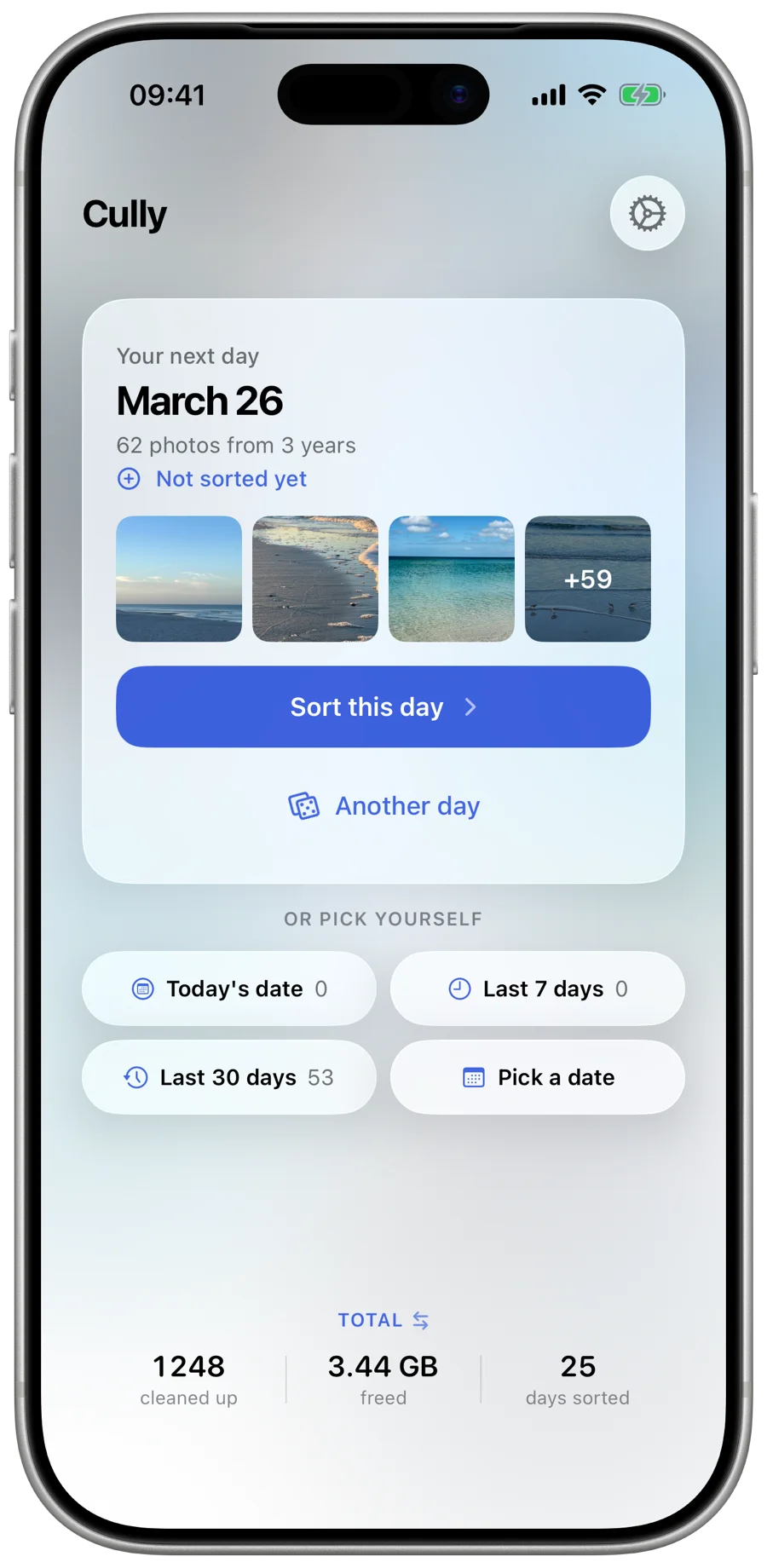
This is the approach that actually works: instead of trying to go through everything, pick a single date and look at all the photos from that date across every year. January 8th, 2019. January 8th, 2021. January 8th, 2023. Whatever you shot on that day.
You'll see a handful of photos from each year. Some you'll want to keep. Some are obviously garbage. Delete the garbage, keep the rest, and you're done in five minutes.
Do this once a day and you'll clean up hundreds of photos per week without it ever feeling like a chore. Over a month or two, you'll free up a surprising amount of storage.
How Cully Makes This Easier
This is exactly the workflow that Cully is built around. You open the app, it picks a random date, and shows you every photo from that date across all years. Swipe to delete, keep what matters, close the app. Five minutes, done.
There's no AI deciding what's important. No cloud upload. No subscription. Just a simple tool that makes the "one date at a time" method fast and easy. Free to try, one-time unlock, no subscription.
You can absolutely do this manually in the Photos app by searching for specific dates. Cully just removes the friction so you actually stick with it.
The Long-Term Fix
Freeing up iPhone storage isn't really about finding some hidden cache to clear. It's about reducing the amount of stuff you're storing. And for most people, that means getting your photo library under control.
You don't need to do it all at once. You don't need a free weekend. You just need five minutes and a willingness to let go of that blurry photo from a restaurant you don't remember.
Start today. Pick one date. Delete the obvious junk. You'll be surprised how good it feels.
Try Cully
Clean up your photo library. One day at a time. Free to try, one-time unlock, no subscription.
Download on the App Store